App launch / Login screen


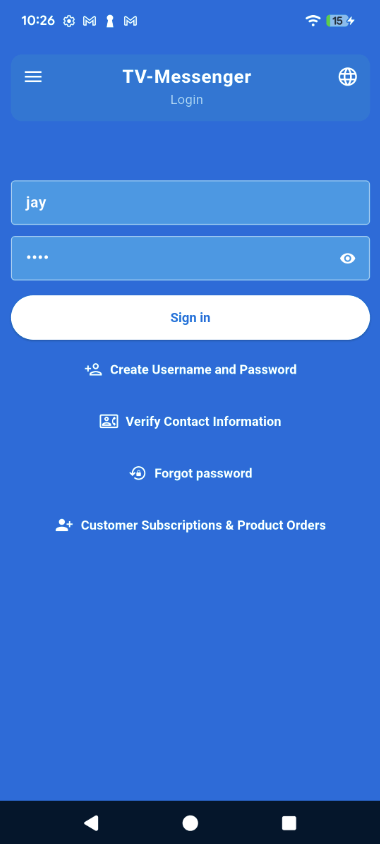
What this screen is?

The entry point for caregivers to create a username, sign up, sign in, change password or verify contact info.

How to Use it:

To log in:

     -    Enter your username and password.

     -    Tap Sign In.

To create a username and password to log in:

     -    You must verify at least one point of contact to log on

     -    If you are new, tap sign up.

     -    If your email/phone isn’t verified, tap Verify Contact Information.

Use forgot password if needed


Mobirise Website Builder

Create Username and Password

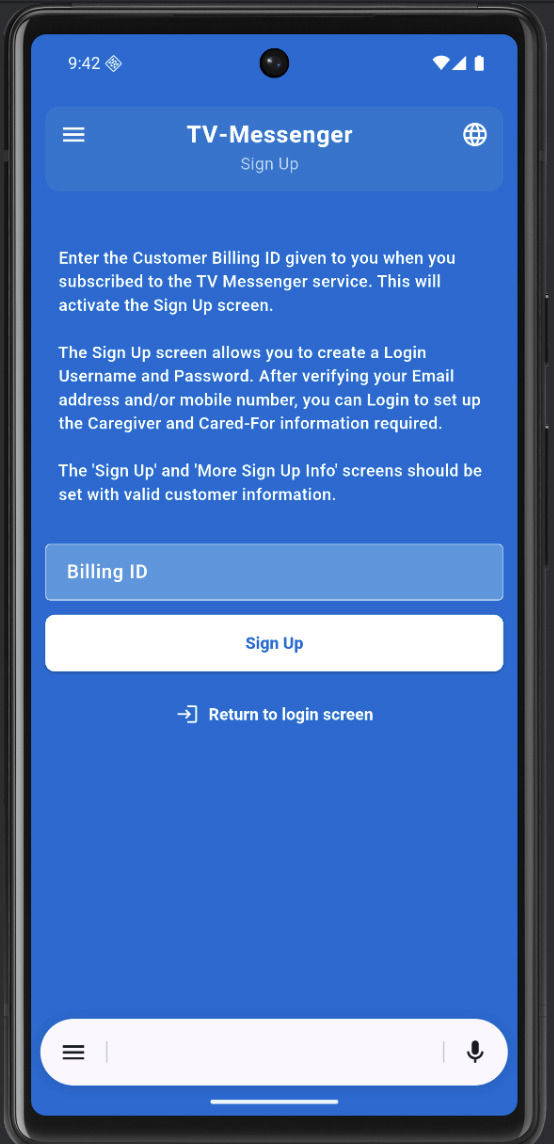
Billing ID and User info

What this screen is?

Before creating an account, the caregiver must enter the Billing ID from their subscription to unlock sign‑up.

How to use it

1. Enter the Billing ID exactly as provided.

2. Tap Sign Up to continue.
Mobirise Website Builder


Sign‑up form 

- Username, Password, Contact Info

What this screen is
Collects:


- Username

- Password

- First/Last name

- Email and/or mobile number

- “More sign up info” link

How to use it: 

1. Enter a username.

2. Create a password and confirm it.

3. Enter first name, last name, email, and/or mobile number.

4. Click more sign up info to enter additional information

5. Tap "Create user"

Mobirise Website Builder

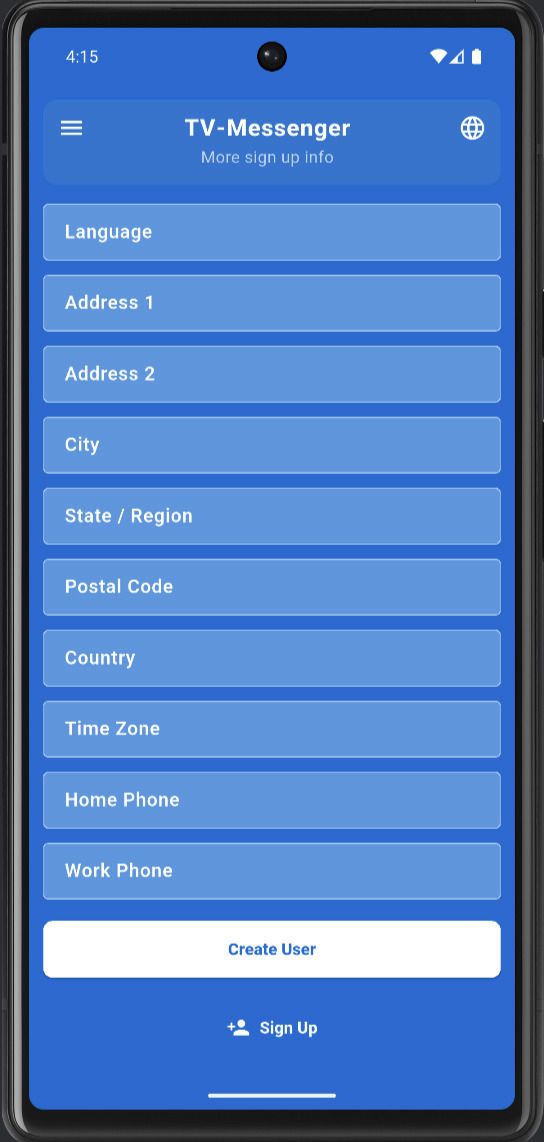
More sign‑up info 
-Address, Language, Time Zone

What this screen is:

Optional profile completion: language, address, time zone, phone numbers.

How to use it:

1. Select language from dropdown

2. Enter address, city, state/region, postal code, country.

3. Choose time zone from dropdown

4. Add optional home and work phone.

5. Tap Create User or Update User.

Mobirise Website Builder

No Code Website Builder